Pin the icon
Select the puzzle-piece icon in the Chrome toolbar, then the pin beside Modifly, so the popup stays one click away.
 Modifly
Get automatic updates by installing Modifly from the Chrome Web Store. For local development, you can still download and load the extension yourself.
Recommended
Visit the Modifly extension page in Chrome.
Select Add to Chrome, then confirm by selecting Add extension. Chrome installs Modifly and keeps it updated automatically.
Local development
Use this option when you need an unpacked copy for development or testing. Store installs are recommended for everyday use.
Download
modifly-v0.1.0.zip, then extract it into its
own folder. Keep that folder on disk while using the extension.
Chrome needs the folder containing manifest.json,
not the ZIP file itself.
Enter chrome://extensions in the address bar, or
choose Extensions →
Manage extensions from the Chrome menu.
Enable the Developer mode switch in the top right corner of the extensions page. The Load unpacked button appears once it is on.
Select Load unpacked, choose the folder you extracted in step 2, and confirm. Modifly appears in the list and its icon is added to the toolbar.
First run
Select the puzzle-piece icon in the Chrome toolbar, then the pin beside Modifly, so the popup stays one click away.
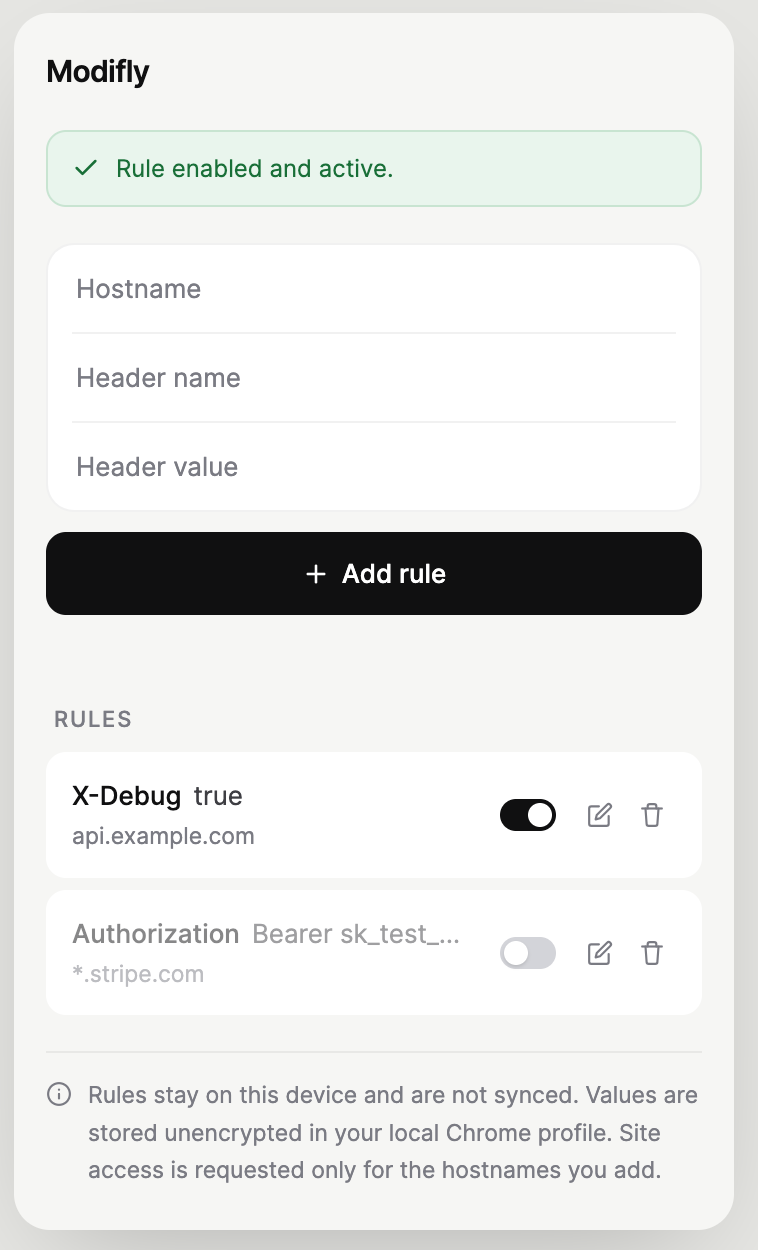
Open the popup on the site you are working on, enter a hostname, header name, and value, then select Add rule.
Chrome asks whether Modifly may access the hostname you configured. Choose Allow to activate the rule.
Reload the target site so it issues fresh requests, then confirm the header in the Network panel of DevTools.
Troubleshooting
Developer mode is still off. Turn on the switch in the top right
corner of chrome://extensions and the button
appears immediately.
The selected folder is not the extension root. Choose the folder
that contains manifest.json directly, and make sure
you extracted the ZIP rather than selecting the archive itself.
This build sets a minimum of Chrome 145. Check your version under
chrome://settings/help, let Chrome update, then
restart the browser and load the extension again.
Unpacked extensions are loaded from their folder on disk. If that folder was moved, renamed, or deleted, Chrome drops the extension. Restore the folder or load it again from its new location.
Download the new ZIP, extract it over the existing folder, then
select the reload icon beside Modifly on
chrome://extensions. Your saved rules stay in your
Chrome profile.
Select Remove beside Modifly on
chrome://extensions. That deletes its stored rules
along with the extension; the extracted folder stays on disk
until you delete it yourself.