Pause or resume
Use the switch beside a rule to disable it temporarily without deleting its settings.
 Modifly
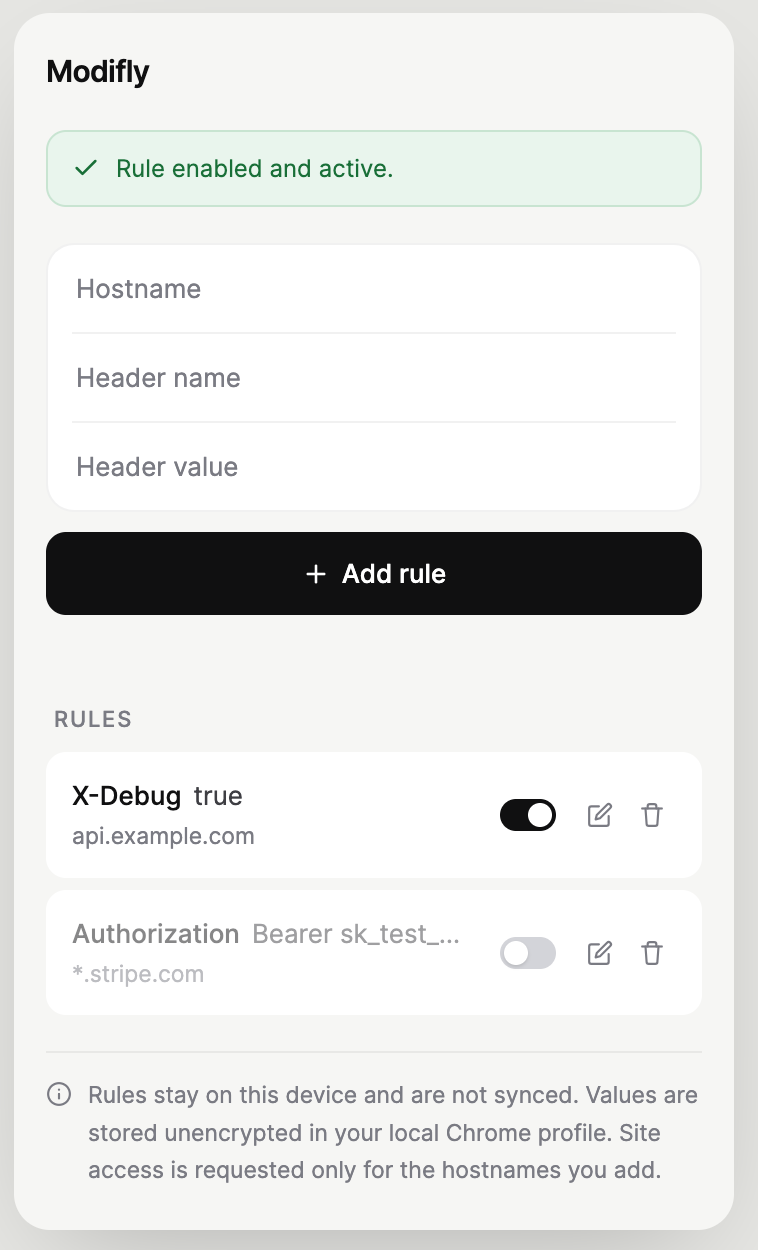
Modifly adds the headers you choose to requests for specific websites. Use it for local development, staging environments, feature flags, or API testing.
Quick start
Visit the website where the header should be applied, then open Modifly from the Chrome toolbar. The hostname is filled in automatically when possible.
api.example.com
X-Debug
enabled
Enter a bare hostname without https://, a port,
or a path. You can separate multiple hostnames with commas.
Select Add rule. Chrome asks whether Modifly may access the configured site. Choose Allow to activate the rule.
Reload the target website so it makes new network requests. Your enabled rule is applied automatically to matching requests.
Everyday use
Use the switch beside a rule to disable it temporarily without deleting its settings.
Select the pencil icon, change the hostname, header name, or value, then save your changes.
Select the trash icon to permanently remove a rule from this Chrome profile.
If a rule says Permission required, select Grant and approve access in Chrome.
Use credentials carefully
Hostnames, header names, and header values are stored locally in your Chrome profile. Modifly does not sync them or send them to the extension publisher.
Chrome extension storage is not encrypted. Avoid long-lived production tokens and revoke any credential that may have been exposed.
Troubleshooting
Select Grant beside the rule and approve the
Chrome access prompt. If the prompt does not appear, open
chrome://extensions, select Modifly, and review its
site access.
Confirm that the rule is enabled, access is granted, and the destination hostname matches the rule. Reload the page to create a new request. Modifly intentionally does not attach a rule to requests initiated by unrelated websites.
Use only the hostname, such as api.example.com.
Do not include a protocol, port, path, query, or fragment.
Chrome can close extension popups while showing a site-access prompt. Your draft is preserved. After approving or declining access, reopen Modifly to continue.
No. It uses Chrome's request-rule system to set the headers you configure. It does not read page responses or upload your rules to an external service.